Find the song you played yesterday
Search your YouTube Music listening history in Moosik, bring a forgotten track back to the queue, and save the mix.
 Moosik··Listening guides

Say you remember the artist but never caught the title. Moosik keeps a time-stamped history of the songs you play on your computer. You can search by artist or song, or scroll straight to yesterday’s listens.
Find yesterday’s track
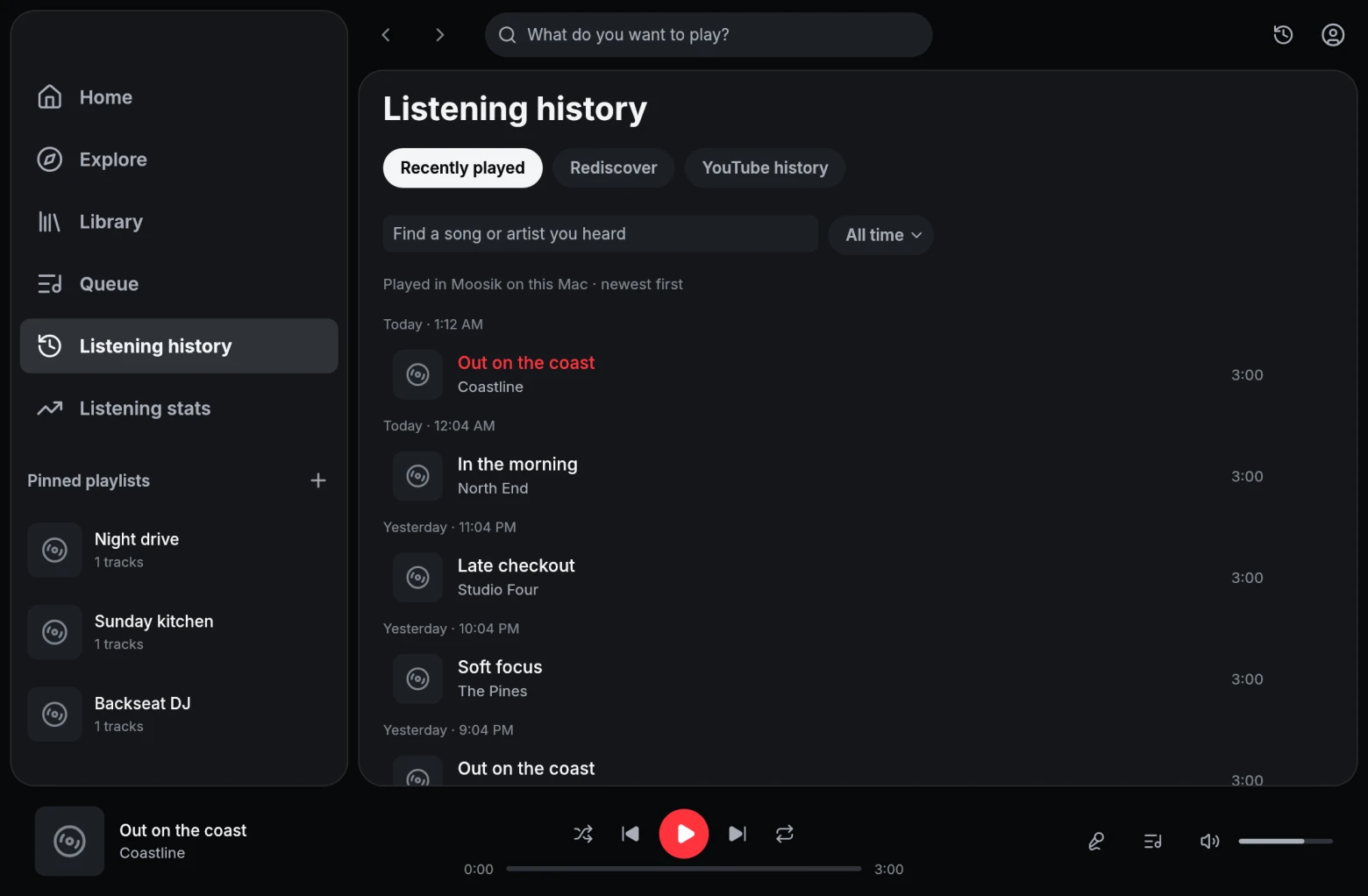
Open Listening history → Recently played in the sidebar. Choose Last 7 days and look for Yesterday. The most recent listens appear first.
In the example below, typing Studio Four into Find a song or artist you heard brings back “Late checkout.” Select Search to see the result, then Queue to see where it goes.
Play it next, or keep it for later
Right-click the song and choose Play next. It moves to the top of the upcoming tracks while your current song keeps playing. Choose Add to queue to put it at the end instead.
Save the whole mix
Open Queue. Hold ⌘ on Mac or Ctrl on Windows and click the tracks you want to move. Drag them together, then choose Save as private playlist. Moosik keeps the current song and upcoming sequence in a playlist on this computer.
What if the history is empty?
Play a song in Moosik first. Local history starts with listening in this installation on your Apple Silicon Mac or Windows x64 PC. For activity on your YouTube account, use the separate YouTube history tab while signed in. You can also export your local listening records.