 moosik
How to start a YouTube Music jam with a shared queue
Host a YouTube Music listening session on desktop, let friends add songs, and see whose pick plays next. Includes supported devices and guest controls.
If you want a Spotify Jam-style queue for YouTube Music, Moosik lets friends on different computers add songs to the same live session. Each person hears the track through their own player and sets their own volume. The host controls playback. Shared queues arrived in Moosik 0.1.32.
Start a listening session
- Everyone installs Moosik and uses their own YouTube Premium or YouTube Music Premium account. Packages are available for Apple Silicon Macs, Windows x64 and Ubuntu 24.04 x86-64. Windows and Ubuntu builds are experimental. On a fresh Windows PC, use the setup installer so the browser can open a Moosik invite.
- The host opens Discord desktop and Moosik on the same computer. In Settings → Discord, check that Discord Rich Presence and Host Listen along are on. Both start enabled in a fresh installation. Play a YouTube Music song.
- A friend opens the host’s Discord profile, chooses Listen along, then lets the browser open Moosik. The separate Play on Moosik button opens just that track. Anyone with a forwarded room invite can join while it is live.
Add a song without interrupting the host
Right-click a YouTube Music track and choose Add to session queue. Open Queue → Session queue to see the upcoming picks and who added them. If the host is halfway through an album and you add two songs, the current track keeps playing. When the host advances, the shared picks play in the order received, ahead of the remaining album tracks. When the shared list runs out, the host’s personal queue takes over.
Guests can contribute songs while the host controls pauses, skips and seeks. Starting a personal mix takes you out of the session. To leave deliberately, select Leave beside the session queue. Moosik restores your previous queue if it saved one. A local MP3 stays on its owner’s computer. Pick the YouTube Music version to share it.
Who can add a song, and who can skip to it?
Say your friend has joined and wants to play a request after the current song. They can drag the YouTube Music track onto Queue in the sidebar while following you, or drop it inside Session queue. Dotted outlines mark the places that accept the song. Even an empty session has a drop area. Their name appears beside the request so you can see whose pick is next.
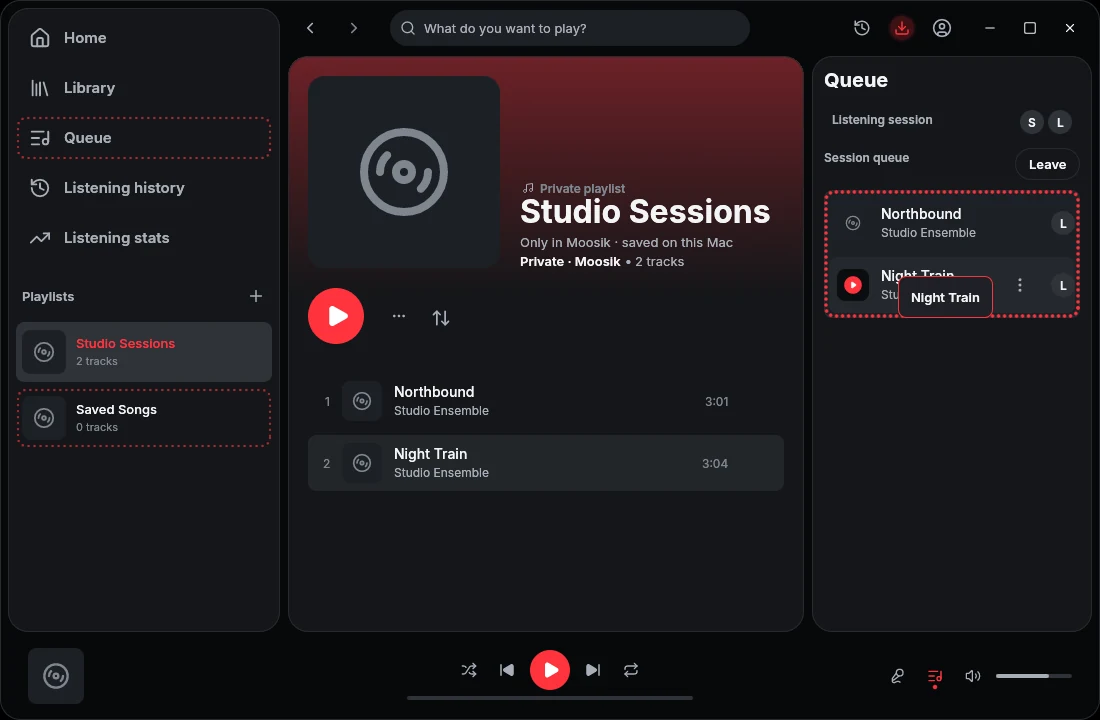
As host, use your normal play gesture on a session row to start it for the whole room. As a guest, playing a row yourself switches you back to personal playback. To keep someone’s pick for later while staying in sync, drag it from the session into your own private playlist. See the host and guest controls in the queue update.
If a friend can listen but cannot add songs
Update both players to 0.1.32 or later. Earlier clients can follow the music without appearing in the roster or contributing tracks. A room holds the host plus 31 guests and up to 48 pending songs. If the queue is full, add your song once a pick starts playing. These limits and compatibility details are in the room documentation.
We ran the 0.1.33 shared-queue test on a local relay. Two simulated guests added songs at the same time. Both picks appeared once with the correct contributor. The relay rejected a guest’s attempt to change playback. The test used simulated playback on one computer.
Can friends add songs from their phones?
A Moosik session requires the desktop app on each participant’s computer. For a party where everyone is using a phone and you want a list you can keep, YouTube Music also offers collaborative playlists. On Android, open your playlist, tap Share → Invite collaborators, and send the invitation. Guests can add and arrange songs in the saved playlist. Google’s collaborative playlist instructions.